
Transcale (TADAS) Integration
Reference data groups can be configured to allow integration between Pitram and Transcale (TADAS) mining scales and 3D volumetric scanners. Information such as payload weight, distribution and density data is automatically collected by defining the integration between Pitram and the TADAS systems.
The integration requires groups of reference data to be deployed:
-
Integration - Defines the integrations available.
-
IntegrationMapping - The mapping between Pitram tokens and tokens used in 3rd party integrations.
-
IntegrationMappingAttributes - Mapping between the Integration and the Pitram reference group and attribute.
To enable integration in Data Acquisition, reference groups must be deployed from Reference Edit.
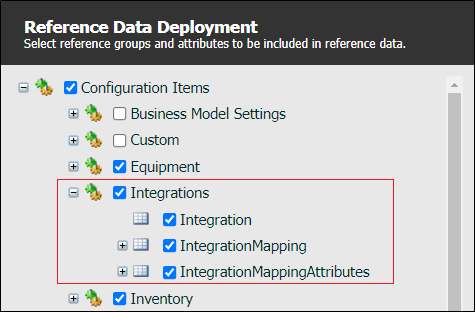
To access the Integrations configuration screens:
Click on the Reference Edit icon to open the Reference Data service:

The first step is to set up the measures and integrations that will be mapped and configured.
Measure
It is likely you have already configured the measure that will be used for the TADAS integration. To view the configured measures for your system, in the Reference Data tree view, expand the Measures reference group and click on the Measure label.
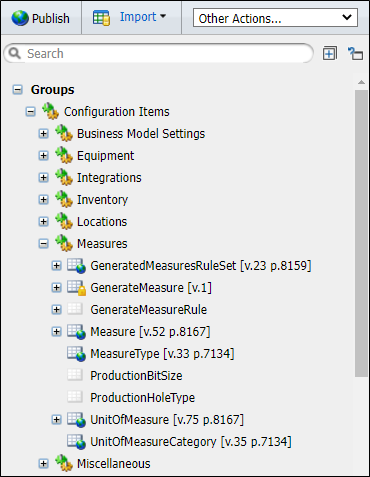
The Measure configuration screen is displayed.
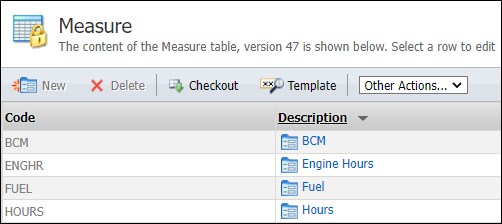
The configuration screen displays the existing Measures. In this example, the configured measure is Kilogram. If you need to create the measure, Checkout the Measure table and click New to create a new measure. The following parameters must be configured.
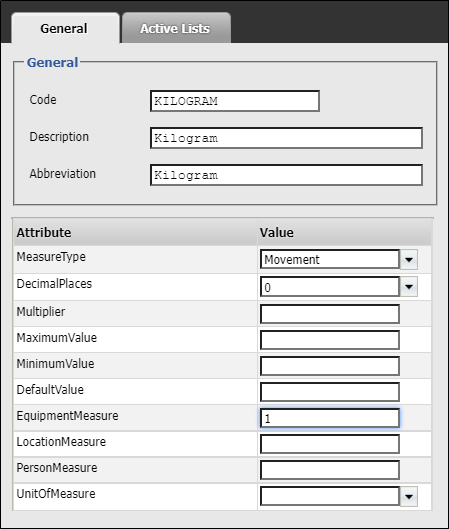
With the measure created and configured, the next step is to create the Integration for TADAS.
Integration
In the Reference Data tree view, click on the Integration reference group:
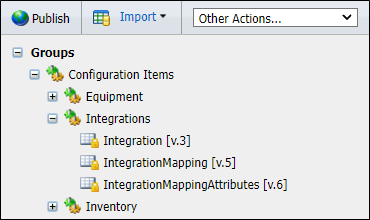
The Integration configuration screen is displayed:
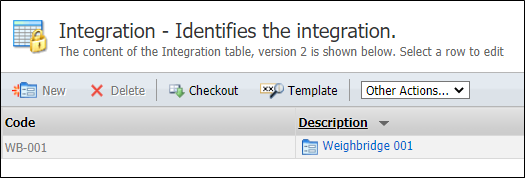
The configuration screen lists the existing Integrations. To create a new Integration, Checkout the table and click New.
The following parameters must be configured:

With the Integration created, an integration mapping token needs to be defined for each equipment used in the integration and for the measure code. To do this, in the Reference Data tree view,
Click on the IntegrationMapping reference group:
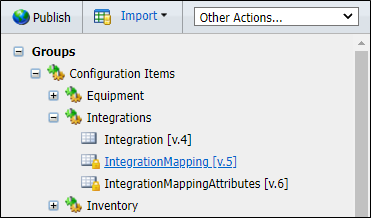
In the Integration Mapping configuration screen, Checkout the table and click New to create a new Integration Mapping.
The following parameters must be configured. Mandatory attributes appear asterisked and in red:
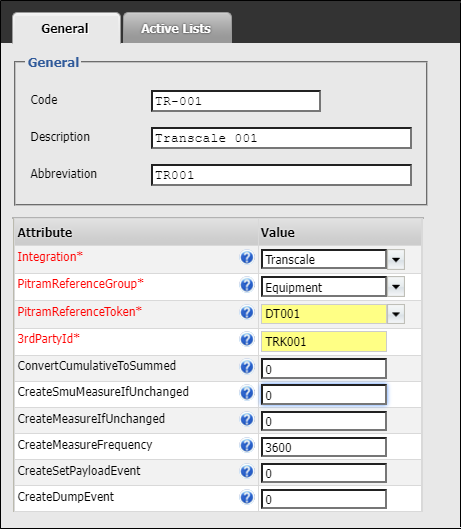
The Integration drop down is used to select the associated Integration to be mapped.
Select the Pitram Reference Group for the mapping from the drop down provided.
Use the Pitram Reference Token drop down to select the relevant token from the selected reference group.
Enter the applicable 3rd Party ID for the Integration in the field provided.
The Convert Cumulative To Summed field is used to configure whether to convert cumulative signal into a summed measure. It does this by using the difference between the value and the previous value. Defaults to off (0), specify 1 to turn on.
In the Create Smu Measure If Unchanged field, set whether to create an SMU measure if the signal has not changed. Defaults to off (0), specify 1 to turn on.
Use the Create Measure If Unchanged field to configure whether to create a measure if the signal has not changed. Defaults to off (0), specify 1 to turn on.
The Create Measure Frequency field is used to configure the time interval, in seconds, that needs to pass before a measure is created. Set to 0 to create measures for every sample.
Enter a value in the Create Set Payload Event to configure whether a payload event is generated if the signal has not changed. Defaults to off (0), specify 1 to turn on.
Use the Create Dump Event field to configure whether a dump event is created when the signal has not changed. Defaults to off (0), specify 1 to turn on.
When the Integration Mapping has been configured and created for TADAS, you can create an integration mapping for the Kilogram measure. To do this, repeat the new Integration Mapping procedure to create a new mapping with the following parameters configured.

Database Marker Configuration (DatabaseMarkerConfiguration.xml)
The DatabaseMarkerConfiguration.xml file is found in the root folder of where the Transcale Connector is installed e.g.:
C:\Program Files (x86)\Micromine Pty Ltd\Transcale Connector.
-
LastDateTimeQueried- The time that the connector last queried for data and will be used for the request. The format used is the ISO 8601 format e.g. 2021-07-02T00:37:54.670Z
Want to learn more?
Online Help Manuals - Click here for the latest version
Learning Management System - Click here to login or here to request access
Comments
0 comments
Please sign in to leave a comment.