
The Manage Licence page in Pitram Portal allows users to view, check out, and check in available licenses. If no license is active, users must activate one with an activation code. Errors like "No Licence file detected" or unmatched VMProtect HWIDs require contacting support. Ensure Licence Services (PLS, NLS, MLS) are running correctly on servers for proper license management.
On the Services ribbon: Select System | Administration | Manage Licence to display the details of the available licences for all Pitram Portal users.
Manage Licence page
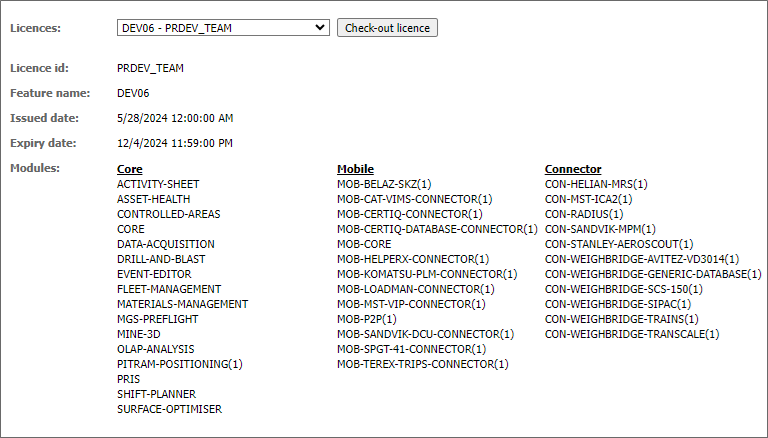
The Licences drop down contains a list of all the available licences for Pitram Portal users. If you select a licence from the drop down, the details for that licence will be displayed.
To utilise the selected license, click the Check-out licence button. The licence is now active (if available) and the button changes to Check-in licence.
When a licence is checked out, you can return it to availability using the Check-in licence button.
If a site has reported a licence error, it will be displayed on the login page for Dome.
'No Licence file detected'
If Please select a licence is in the dropdown menu, there is not one active.
If none are available, update the Licences / put in the activation code for that site. Click Activate licence
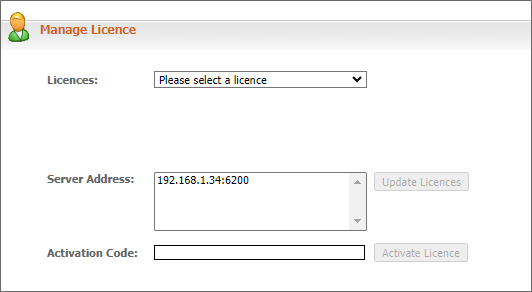
Apply the license in the drop down and check out. You will get a 'Successfully checked out licence' message when complete.
Relog into Dome to confirm missing modules are back.
If you receive a error message stating:
“[MMLS] Unmatched VMProtect HWIDs for licence feature PR*** - please contact support for help with transferring a licence between computers”
You will need to contact the licensing team to return the licence, as it is node locked.
Note:
Its always good to check that the Licence Services are running correctly on the server.
PLS | Pitram Licensing Service (Installed on Portal Server) |
NLS | Network License Server (Installed on Pitram Server) |
MLS | Micromine Licensing Service (Cloud Service hosted on Amazon AWS) |
For example the MLS running:
Comments
0 comments
Please sign in to leave a comment.