
This article describes the process of creating, configuring, and using mobile user interface profiles with mobile devices on our system.
Deploying Default Mobile UI Configuration
To manage, import, and export reference data groups for mobile UI configuration, specific data groups must be deployed. The following outlines the process for deploying these groups and their associated attributes.
Mobile Settings
The MobileUserInteface groups are contained in the Mobile Settings branch of the Reference Data Deployment tool. To ensure the groups are deployed, in Portal;
-
Open the Reference Edit service.
-
From the Other Actions drop-down, select Deploy Reference Data.
The Reference Data Deployment dialog opens.
-
Expand the Configuration Items branch.
-
Expand the Mobile Settings branch.
-
Expand the Mobile User Interface branch.
-
Select the Mobile User Interface check box. This will select the check box for all attributes it includes - as shown:
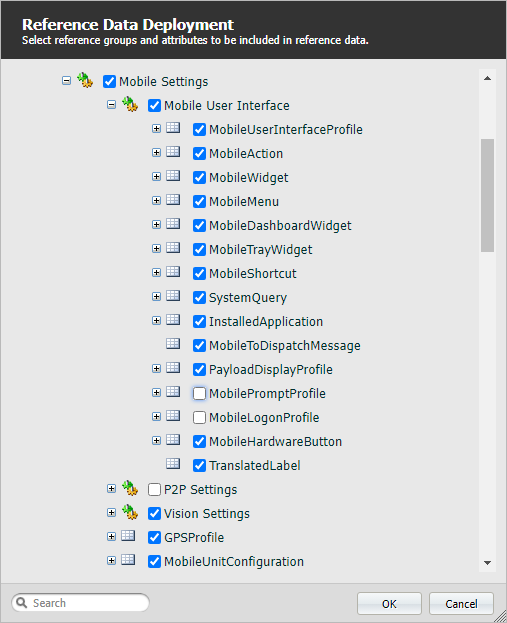
With the Mobile Settings data selected for deployment, the MobileUserInterfaceProfile attribute must be selected for two groups.
MobileUserInterfaceProfile
-
Select the check box for the MobileUserInterfaceProfile attribute in the MobileUnitConfiguration group:
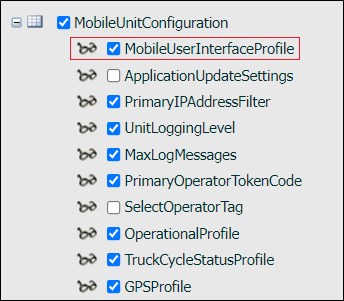
-
Select the check box for the MobileUserInterfaceProfile attribute in the OperationalProfile group:
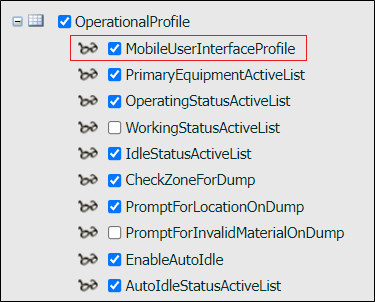
When all of the relevant reference data has been selected for deployment,
-
Click OK to deploy the reference data.
Once the Mobile User Interface groups have been deployed, you will be able to load the default reference data and import mobile UI templates using the newly enabled option in Reference Edit - as outlined in Importing Default Mobile UI Configuration.
To publish the mobile UI reference data, in the Reference Edit service,
-
Click the Publish button.
Importing Default Mobile UI Configuration
The default mobile UI reference data groups can be imported together using the Reference Edit service.
Note: All MobileUserInterface reference data groups must be deployed for the option to be enabled. See the previous step Deploying Default Mobile UI Configuration.
When the relevant reference data groups have been deployed, to import the Mobile UI configuration, in Portal;
-
Open the Reference Edit service.
-
From the Other Actions drop-down, select Load Default Mobile UI Reference Data.
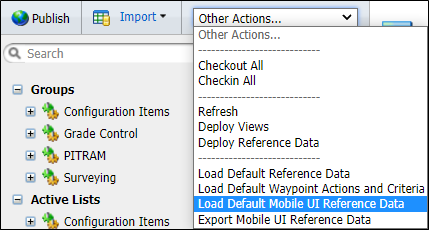
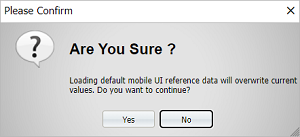
A confirmation prompt will open.
-
Click Yes to proceed.
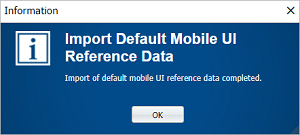
The default data will be loaded and the application will prompt you when complete.
-
Click OK to close the prompt.
To view the imported templates, in the Reference Edit service,
-
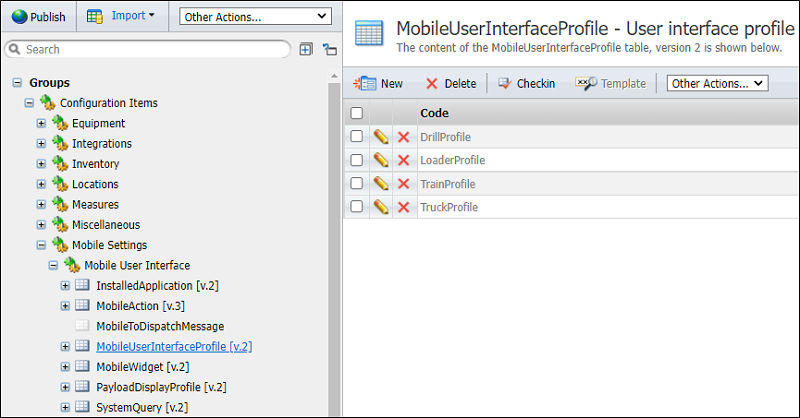
Navigate to Configuration Items > Mobile Settings > Mobile User Interface.
-
Select MobileUserInterfaceProfile.
The templates are displayed in the table at the right.
Note: For the Train Profile, there is no default measure for the Wagons in the system, as the default UI Reference data set does not contain the FixedMeasure value. Consequently, the Dump button will not be displayed for the profile, regardless of whether it is configured in the MobileShortcut group. You will need to set the relevant measure in the MobileActions group for the TrainDump token after the default UI reference data has been deployed.
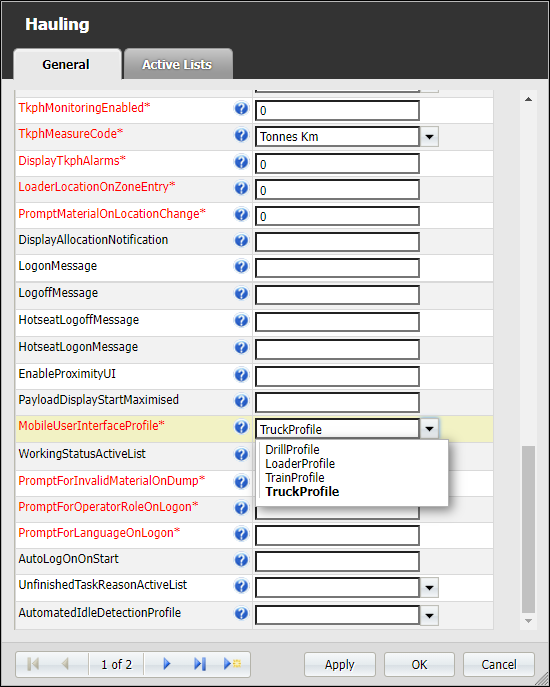
These profiles need to be allocated to the relevant Operational Profile for a group (fleet) or Mobile Unit Configuration for a single unit.
To allocate a profile,
-
Navigate to Configuration Items > Mobile Settings.
-
Click on either OperationalProfile or MobileUnitConfiguration and Checkout the group.
-
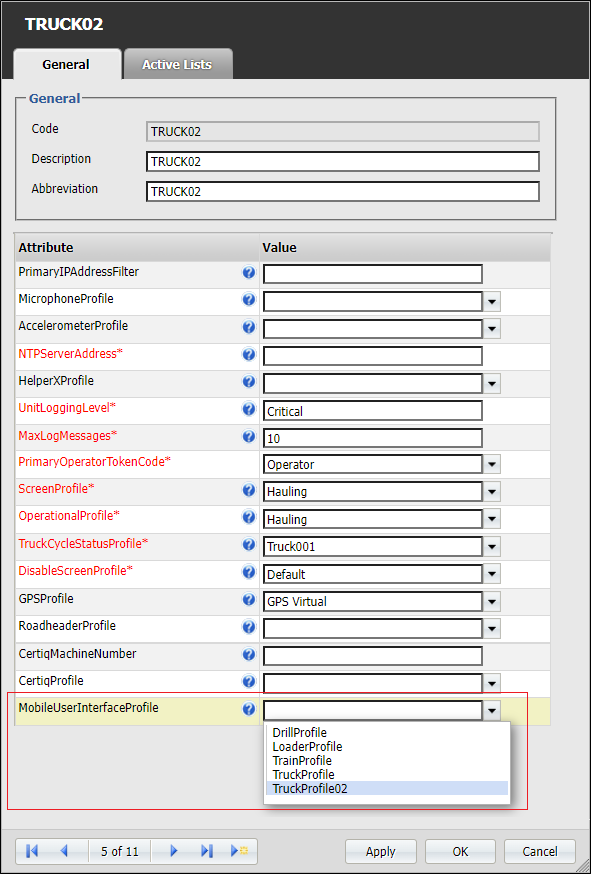
Open an OperationalProfile, for example, in order to allocate the MobileUserInterfaceProfile using the drop down list provided - as shown in the following example:
-
Click OK to save the changes to the selected token.
-
Repeat this procedure for any tokens to which you want to allocate a profile.
-
Checkin the OperationalProfile / MobileUnitConfiguration groups when complete.
-
You can use the Checkin All option on the Other Actions... drop-down menu to check in all of the reference data you have modified.
Configuring Mobile UI Profiles
Mobile user interface profiles can be configured to determine the content of the main mobile screen or a menu screen using the MobileUnitConfiguration reference group for a single equipment unit or the OperationalProfile for a group (fleet) of mobile units.
A new mobile user interface profile can be created using the MobileUserInterfaceProfile reference data group and linked to either MobileUnitConfiguration or OperationalProfile.
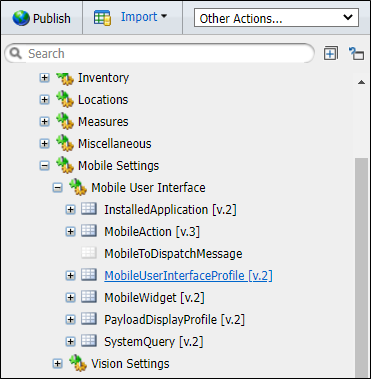
Mobile User Interface profiles are created in the Mobile User Interface reference data group. To open the group, in the Reference Edit service configuration pane,
-
Open Configuration Items > Mobile Settings > Mobile User Interface > Mobile User Interface Profile.
-
Checkout the table and open the TruckProfile template deployed with the default reference data.
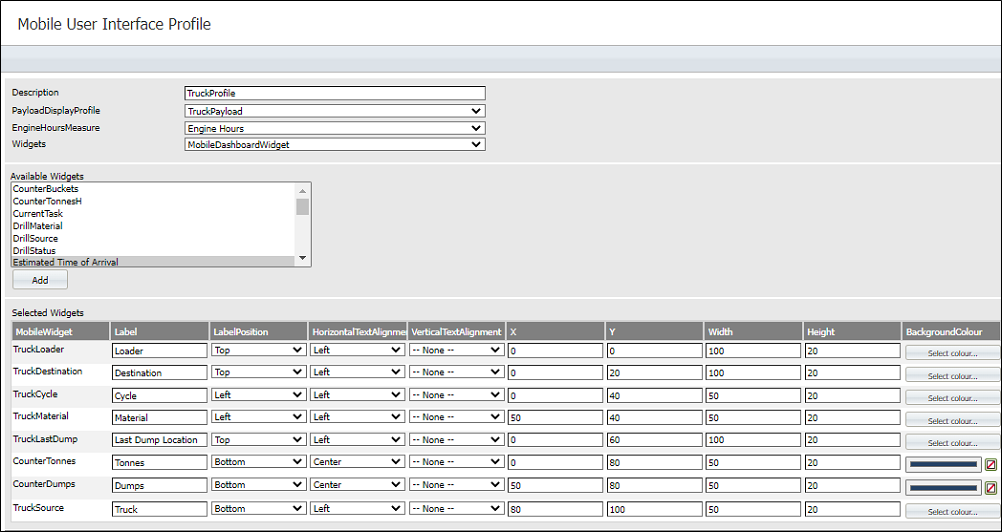
The default Truck profile contains several Widgets that will appear on the mobile unit screen. The appearance of the widgets is configured in the fields provided.
-
Click OK to close the Truck profile.
The following outlines the process of creating and configuring a Mobile User Interface profile.
Create a Mobile UI Profile
To create a new profile,
-
Click the New button in the Mobile User Interface Profile table.
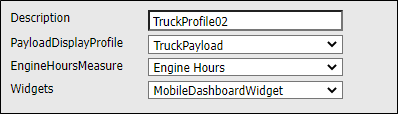
A blank Mobile User Interface Profile form is displayed.
-
Enter a description for the profile in the Description field.
Pitram will assign a unique identifier to the profile. The Description you enter will be used when assigning the new profile to a unit or fleet configuration.
-
Select the Payload Display Profile for the new mobile UI profile from the drop-down provided.
-
Select the applicable Engine Hours Measure for the profile from the drop-down.
-
Use the Widgets drop-down to select the Active List containing the widgets to be used with the profile.
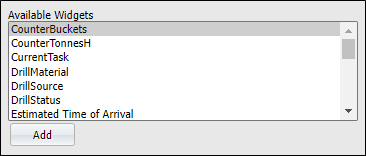
The Available Widgets list displays the widgets that have not been added to the profile configuration.
-
You can select a widget from the list and click Add to add it to the profile.
Widgets you select will be displayed in order of selection in the Selected Widgets grid at the bottom of the form
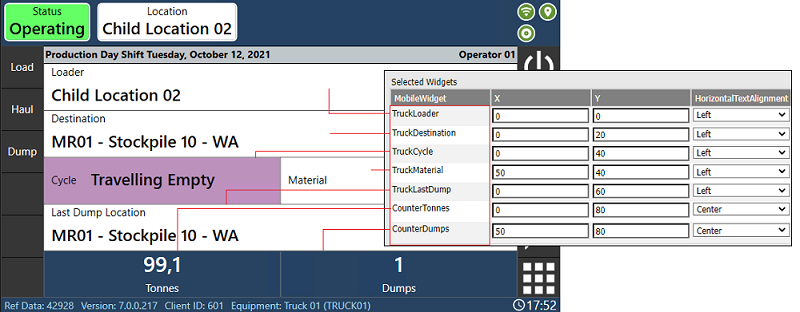
The Selected Widgets grid displays the widgets you have selected for the profile and the associated parameters for each.
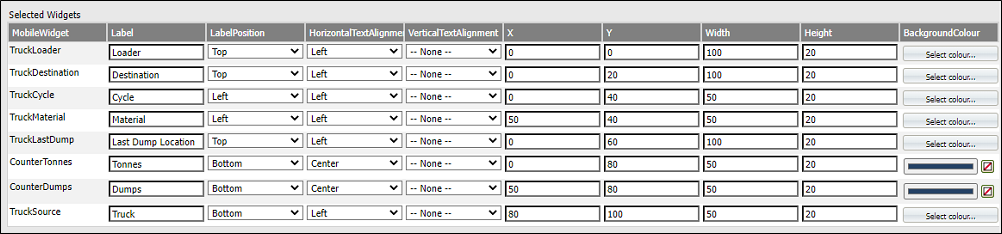
The XY options set the coordinates for the position of the widget on the screen for the profile (in percentage) - with 0, 0 being the top left corner of the mobile unit screen.
The Horizontal and Vertical Text Alignment drop-down menus are used to select the alignment options of the text labels for the widget on the line.
The display dimensions for the widget (in pixels) are entered in the Width and Height fields.
The Label Position drop-down provides options for the display position of the widget text label, relative to the widget.
Enter the text for the label in the Label field.
The Select Colour button in the Background Colour field is used to set a background colour for the widget, where required.
-
If you click the Select Colour button, the default background colour is selected.
-
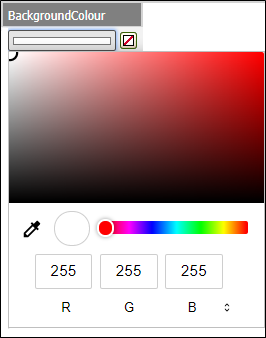
Click the colour bar to open the colour picker and select a background colour (or enter the RGB values manually).
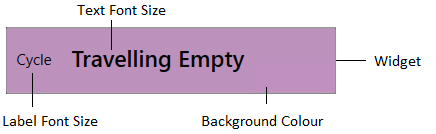
The Label Font Size field is used to enter the font size, in points, for the widget label.
Enter the font size, in points, for the text in the widget in the Text Font Size field.
The Delete button at the end of the Widget row will remove the selected widget from inclusion. The widget, once removed, will reappear in the Available Widgets list.
When the required widgets have been added and configured,
-
Click OK to add the new profile.
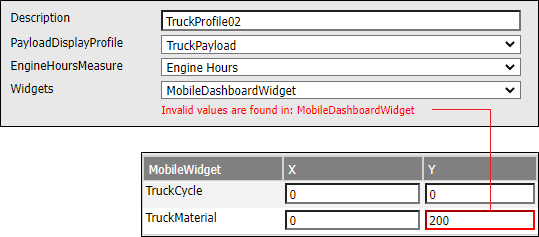
Validation is applied at the time of saving the profile by clicking OK. If validation fails, an error message will appear in the form and the option in error will be highlighted in red. You will need to reconfigure your new profile before adding it again.
The following is an example of the default Truck profile as displayed on the mobile unit screen. Note the appearance of the Truck Loader, Truck Destination and other widgets on the configured display.
-
Checkin the Mobile User Interface Profile table to save the details of the new profile.
-
Publish the reference data in the Reference Edit service.
The new Mobile User Interface Profile can now be assigned to the relevant MobileUnitConfiguration (shown below) or OperationalProfile.
Exporting Mobile UI Configuration
The reference data groups used for mobile UI configuration can be exported in a single spreadsheet and downloaded to the browser. This file can then be used to import the modified groups on another system.
Note: All MobileUserInterface reference data groups must be deployed for the option to be enabled. See the previous step Deploying Default Mobile UI Configuration.
For information on importing Mobile UI Configuration, see the previous step Importing Default Mobile UI Configuration.
When the relevant reference data groups have been deployed, to export the Mobile UI configuration, in Portal:
-
Open the Reference Edit service.
-
From the Other Actions drop-down, select Export Mobile Reference Data.
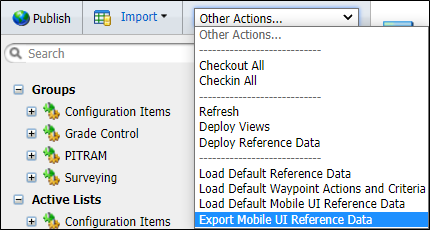
The Export dialog will open.
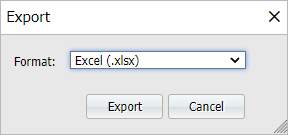
The Format drop-down displays the file format for the export - in this case .xlsx.
-
Click Export to create the spreadsheet with the UI reference data.
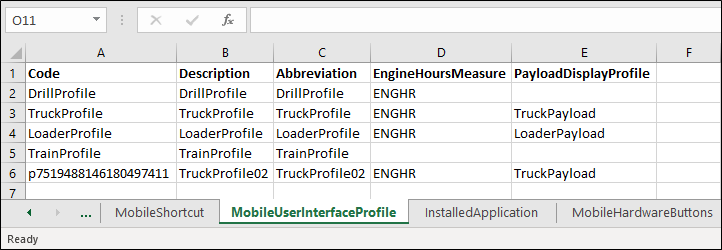
The file will be created and saved to your default Downloads folder. The exported file contains several tabs with the exported reference data collected.
This concludes the customization of our Mobile User Interface.
Want to learn more?
Online Help Manuals - Click here for the latest version
Learning Management System - Click here to login or here to request access
Comments
0 comments
Please sign in to leave a comment.